Kiosk App Resources
Everything you need to set up and run a self-service ordering kiosk at your coffee shop
Download the Kiosk App
Available on iOS and Android. Scan the QR code or click to download.


What is LC Kiosk?
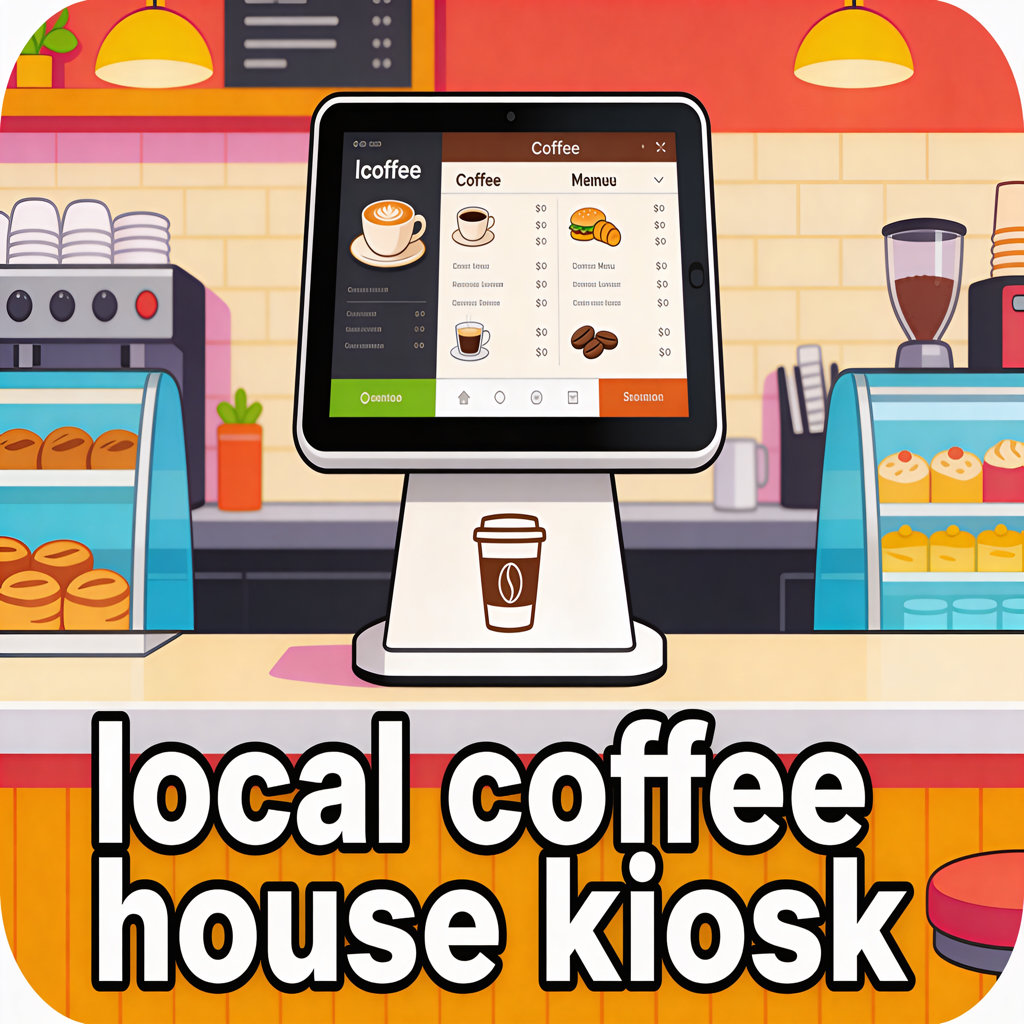
LC Kiosk turns any tablet into a self-service ordering station for your coffee shop. Set it on your counter and let customers browse your menu, choose their drink size, and place orders — all without waiting in line.
Sign in with your Local Coffeehouse owner account, and your full menu loads automatically — organized by category, complete with item photos, descriptions, and pricing. Customers simply tap to browse, select a size, add items to their cart, and place their order with their name. Orders appear instantly in your Owner app, ready for your barista to prepare.
Getting Started Guide
1. Install the Kiosk App
Download LC Kiosk from the App Store (iPad) or Google Play (Android tablet). Any tablet will work — just make sure it has a stable internet connection.
2. Sign In with Your Owner Account
Use your Coffee House Owner app email and password to sign in. The kiosk will automatically load your shop's menu, categories, and pricing.
3. Set Up Your Tablet
Place the tablet at your counter where customers can easily reach it. For the best experience:
- Use a tablet stand or mount to keep it secure
- Keep the tablet plugged in so it stays charged
- Enable Guided Access (iOS) or Lock Task Mode (Android) to prevent customers from leaving the app
- Position the screen so it's visible and accessible to customers
4. Control What Appears on the Kiosk
In the Owner app, each menu item has a "Show in Kiosk" toggle. Use this to control exactly which items customers see on the kiosk:
- Toggle items on or off without affecting your main menu
- Changes sync to the kiosk in real time — no restart needed
- Items marked as unavailable are automatically hidden
5. How Customers Place Orders
The ordering flow is simple and intuitive:
- Browse the menu by category
- Tap an item to select a size (if applicable)
- Add items to the cart
- Enter their name and place the order
- The order appears instantly in your Owner app
6. Connect a Credit Card Reader (Optional)
Accept card payments directly at the kiosk with a Stripe-integrated credit card reader:
- Navigate to the reader setup screen from the kiosk settings
- Power on your Stripe-compatible card reader (e.g., Stripe Reader M2 or BBPOS WisePad 3)
- The kiosk will automatically discover nearby readers via Bluetooth
- Select your reader from the list to pair it
- Once connected, customers can tap, insert, or swipe their card to pay at the kiosk
The reader will automatically reconnect each time the kiosk app launches. See Hardware Options for recommended card readers.
7. Managing Kiosk Orders
Kiosk orders appear in your Owner app's order list with a "Kiosk Order" badge so you can easily identify them. When the order is ready, tap "Order Picked Up" to complete it.
Key Features
Real-Time Menu Sync
Any changes you make in the Owner app — prices, items, availability — appear on the kiosk instantly.
Store Status Detection
When your store is closed, the kiosk automatically shows a friendly notice directing customers to see the barista.
Size Selection
Customers can choose from your configured drink sizes with clear pricing for each option.
Show in Kiosk Toggle
Control exactly which menu items appear on the kiosk from the Owner app, without affecting your mobile menu.
Works on iPad & Android
Cross-platform support means you can use whatever tablet you already have.
Clean, Intuitive UI
Designed for customer self-service — no training needed. Customers just tap and order.
Stripe Credit Card Payments
Connect a Stripe card reader to accept tap, chip, and swipe payments directly at the kiosk — a complete POS solution.
Auto-Reconnect Card Reader
The kiosk remembers your card reader and automatically reconnects on launch — no manual pairing each day.
Video Tutorials
Watch step-by-step tutorials on setting up your kiosk.
Feature Documentation
Detailed documentation for every kiosk feature.
Coming SoonFAQ
What tablets are supported?
Any iPad or Android tablet with a stable internet connection. We recommend 10" or larger for the best experience.
Does it work offline?
No, the kiosk requires an internet connection to sync with your menu and send orders to the Owner app.
How do customers pay?
With a connected Stripe card reader, customers tap, insert, or swipe their card. Without a reader, orders use the honor system.
Do I need a separate subscription?
No! The Kiosk app is included in your $29.99/month Owner subscription at no extra cost.
Tips for Success
Position the Kiosk Strategically
Place it where customers naturally wait — near the entrance or at the front counter. Make sure it's visible and inviting.
Keep Your Menu Updated
Regularly review which items are shown on the kiosk. Use the "Show in Kiosk" toggle to curate a streamlined menu for quick ordering.
Add a Small Sign
A simple "Order Here" sign next to your kiosk tablet can increase usage significantly.
Lock Down the Tablet
Use Guided Access (iOS) or Lock Task Mode (Android) to keep the app pinned and prevent customers from navigating away.
How to Lock Down Your Kiosk Tablet
Prevent customers from leaving the kiosk app by enabling single-app mode on your tablet.
iPad (Guided Access)
- Go to Settings > Accessibility > Guided Access
- Toggle Guided Access on
- Tap Passcode Settings and set a passcode (this is how you'll exit later)
- Open the LC Kiosk app
- Triple-click the Side Button (or Home button on older iPads)
- Tap Start in the top-right corner
To exit: Triple-click the Side Button again and enter your passcode.
Android (Screen Pinning)
- Go to Settings > Security > Screen Pinning (may vary by device)
- Toggle Screen Pinning on
- Enable "Ask for PIN before unpinning" for security
- Open the LC Kiosk app
- Open the Recent Apps view (square button or swipe up)
- Tap the app icon at the top of the Kiosk card and select Pin
To exit: Press and hold the Back and Overview buttons simultaneously, then enter your PIN.